
Use Morrow to list the modules in [course name] and summarize what each covers. Tell me anything you could not read. Do not change the course.
Guided Setup
Connect your assistant to your courses. The app walks you through setup.
Use the ChatGPT desktop app, Claude Desktop, Claude Code, or Gemini CLI with the Canvas or Moodle courses your school account can open. Morrow guides you from download to your first course.
Three Stages
From Download to Your First Course.
The Morrow app keeps the setup in one guided path. It shows one next action at a time and checks each connection before it moves on.
- Stage 1
Download and open Morrow.
Choose the Download for Your Computer, install it, and open the Morrow app.
- Stage 2
Follow the setup in the app.
Morrow finds the assistants on your computer. Choose yours, then follow the one action Morrow shows.
Inside the Guided Setup
- Add Morrow to your assistant.
- Add Morrow Bridge, Morrow’s Chrome extension. Select Show Bridge folder in the app. In Chrome, open Manage Extensions, turn on Developer mode, and select Load unpacked. Choose the folder Morrow shows.
- Select Pair Morrow in Morrow Bridge to pair it with Morrow.
Optional: A default materials folder is ready for you. Change it only if you want course files in another folder.
- Stage 3
Pair your learning account once.
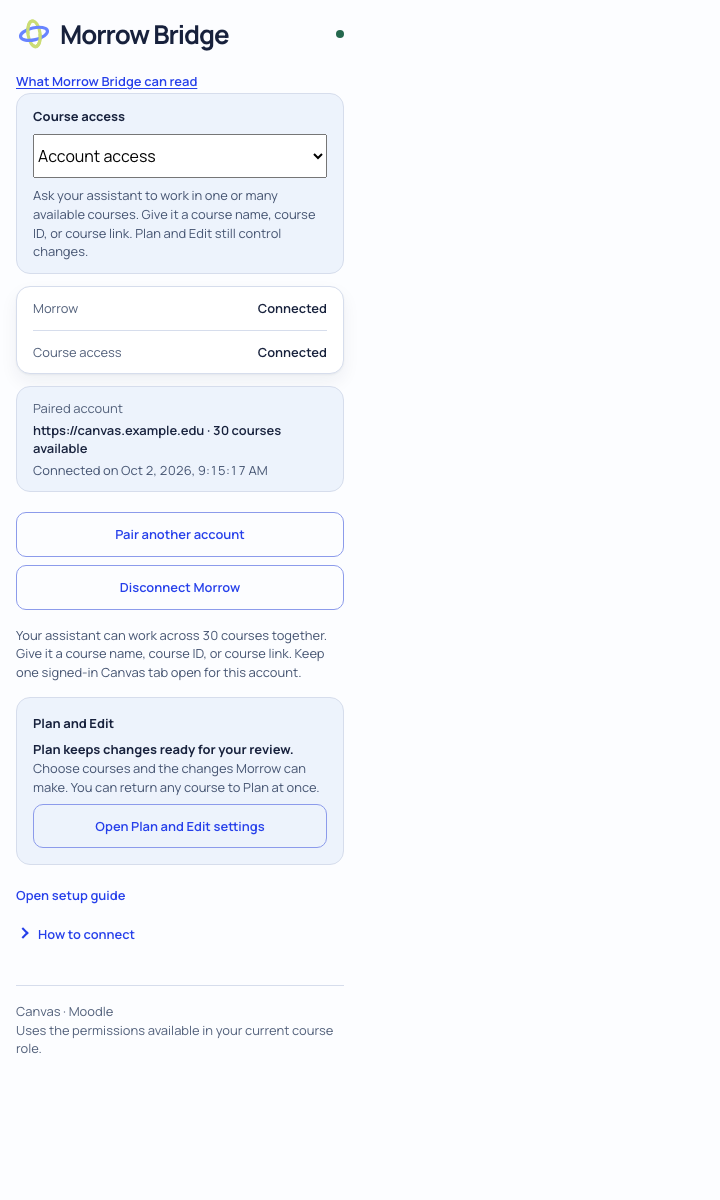
Sign in to Canvas or Moodle in Chrome and open any course to identify your account. Open Morrow Bridge, select Pair Canvas account or Pair Moodle account, and allow access to the exact site Chrome shows. You pair each account once.
Choose Selected courses to limit access to courses you allow in Plan and Edit settings. Choose Account access to work across your account without selecting each course in Bridge. You can switch modes without pairing again. Both modes start new courses in Plan. Keep one signed-in tab from each learning platform open while you work.
After Morrow checks your course connection, quit and reopen your chosen assistant as directed. Start a new chat in that assistant and tell it what to work on. Give it course names, course IDs, or course links. You can ask it to compare many courses in one request. Edit permission stays separate from your course access mode.
Your First Task
Continue in your assistant’s chat.
After Morrow checks the course connection, follow the setup window’s instructions to quit and reopen your assistant. Start a new chat in the assistant you chose, then copy this request and replace the course name.
Using ChatGPT desktop? Use the desktop app with local MCP support. Open Settings → MCP servers and check that morrow is enabled. In the composer, type /mcp to view connected servers. Using Codex CLI instead? Run codex in your terminal on this computer, use /mcp to check Morrow, then send the request in that terminal chat. This setup does not connect ChatGPT browser or phone chats.
Allow your assistant to use the Morrow tools when it asks. A tool permission lets the assistant call Morrow; changing a course still follows Morrow’s separate Plan, Edit, and review rules. Your first request reads the course and answers in that chat.
For the next task, return to the same assistant and name the course. Keep a signed-in Canvas or Moodle tab open in Chrome. If setup stops, reopen Morrow and follow the next action it shows. If the course account signs out, sign in again in Chrome and check the connection before continuing.
Student Privacy
Protect student identity before course information reaches your assistant.
Morrow uses the course roster to replace known student identifiers in supported records with labels such as Student A1 before they reach your assistant.
Read the Student Privacy LimitsMichaela Adams→becomesStudent A1Adams, Michaela→becomesStudent A1madams@example.edu→becomesStudent A1ID 20410087→becomesStudent A1
Who does what.
You choose the work and make the decisions. Your assistant helps you think and write. Morrow connects it to the courses you choose.
Canvas and Moodle use Morrow Bridge in Chrome.
- YouChoose the courses, describe the work, and decide which changes to allow.
- Your AssistantPrepares plans, reports, charts, and course changes.
- MorrowConnects your assistant to the courses you chose, supplies course-work guidance, and holds proposed changes for review.
- Morrow BridgeConnects the Canvas or Moodle tab. Your password and cookies stay in Chrome.
- Your Course SiteUses your existing account and permissions.
What happens when you ask for a change.
In Plan, every proposed change waits for you. Edit access applies only to the courses and types of change you choose.
Review the change first.
See the course, item, current content, and proposed content. New Quiz plans can show current instructions, settings, dates, and directly listed questions. Item Bank plans show the bank, its items, and the quizzes that use it. Canvas does not report every place a bank is shared, so Morrow always marks its list of shares as possibly incomplete.
Changes to a shared reading passage or to outcome alignment always wait for your review. These New Quiz and Item Bank tools have passed Morrow’s tests. Before Morrow sends a New Quiz change, it checks that the change still matches the course and the item you reviewed.
What You Get Approve the change or ask for a different one.
Approve a group together.
Review each item in the group, then use one button to start the approved changes. The page shows progress.
What You Get A clear count of completed, unconfirmed, and remaining work.
Check the course afterward.
When Morrow can safely read a saved result, your assistant compares it with the approved change.
What You Get If Morrow cannot confirm a result, it sets the item aside and does not repeat the change.
Before you pair your account.
Use the Canvas or Moodle account you already sign in with, and the assistant you already use.
Can I use my own assistant?
Yes. Use the ChatGPT desktop app, Claude Desktop, Claude Code, or Gemini CLI with the Canvas or Moodle courses your school account can open. Follow your institution’s rules for course content and AI tools.
Can a scheduled task help with student support?
If your assistant can run scheduled work, it starts at the time you choose. Your assistant uses Morrow to read the current pages, assignments, and discussions from the sections you selected. It can then prepare drafts for the students who match what you asked for.
Does my computer have to stay on while Morrow works?
Yes. Morrow, the app for Mac and Windows, works through your computer, so keep it awake, online, and signed in to your course in Chrome while your assistant works. If you use Muse, Morrow Bridge for Muse runs on your own Muse Secure VM instead, so your computer can be off. Morrow Bridge for Muse works with Canvas. Moodle in that Muse setup is in early development and still needs live testing. For Moodle, pair your Moodle account through Morrow.
Can my school stop Morrow Bridge from running?
Yes. A Chrome profile managed by your school can block Developer mode and unpacked extensions, and a school can also block extensions, the connection between Chrome and the Morrow app, or the course site itself. Morrow cannot work around any of those. Ask whoever manages the browser or the course platform.
When is a course change ready to apply?
Morrow starts in Plan, so every proposed change waits for you. You see the current and proposed versions side by side, then approve only the changes you want. Your assistant uses Morrow to apply each approved change and check the course afterward. It tells you if an item needs attention.
What happens when Morrow updates Morrow Bridge?
When Morrow updates Morrow Bridge, open Chrome’s Manage Extensions page and reload Morrow Bridge yourself. Chrome requires you to reload an unpacked extension.
Use the course sign-in you already have.
Use the Canvas or Moodle courses your school account can open.
What we have tested.
Morrow works with Canvas and Moodle on Mac and Windows. We have checked selected Canvas tasks on live test courses, and part of the Moodle catalog on a Moodle test course. Live checks for every assistant are still underway.